
Integration · Linear
Send retrospective action items to Linear
Free for one team · Linear is included on every plan
Try it: an action item from a retro
Give staging an owner and an alert
Press the button. In Retro Rabbit, the action item gets this chip with the issue and its status, and the chip opens the issue in Linear.
What the Linear integration does
From action item to Linear issue
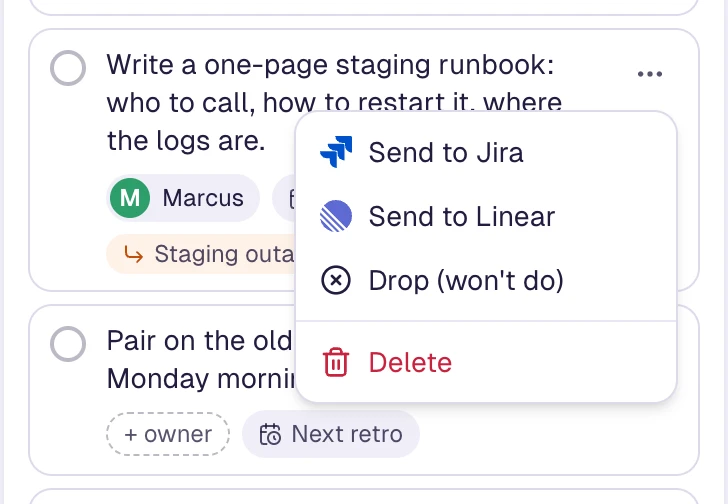
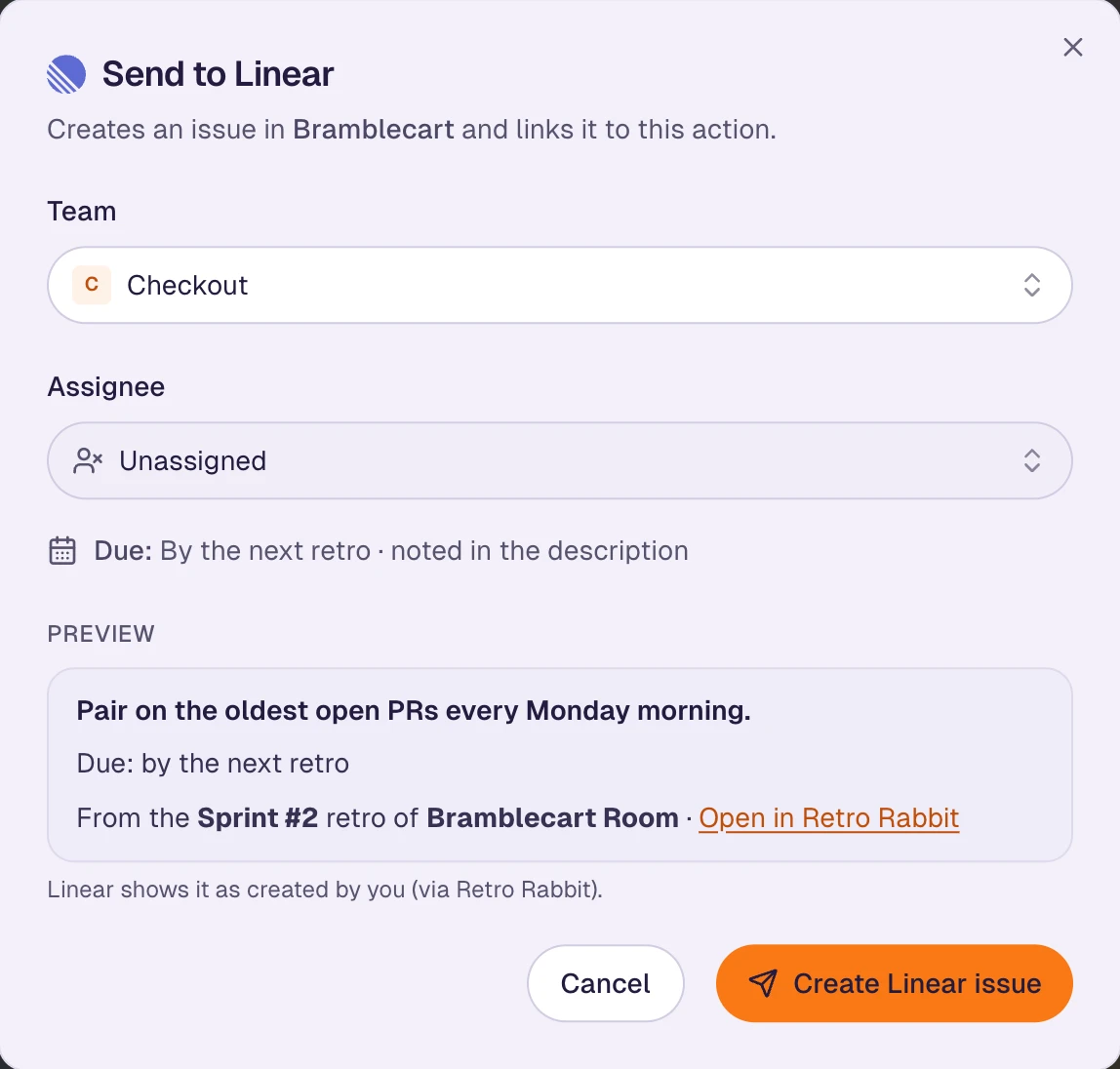
Open an action item’s menu and choose Send to Linear. Pick the Linear team and assignee, check the preview, and create the issue.
The issue shows on the action
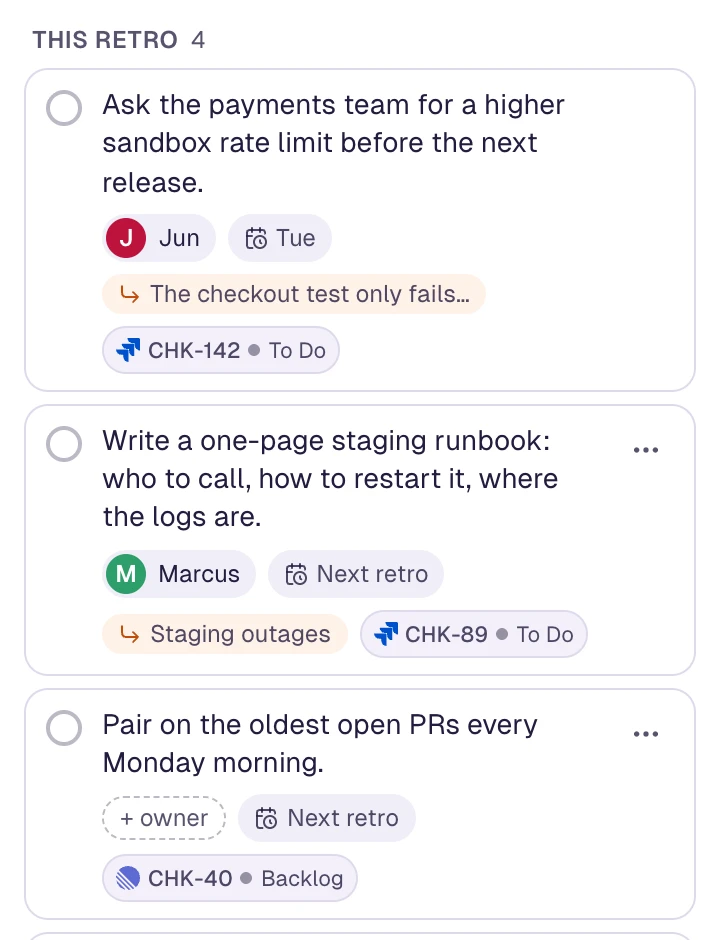
The action item gets a chip such as ENG-87 · Backlog. It opens the issue in Linear, and its status is re-read when someone opens the board.
The issue links back to the retro
The Linear issue carries a link to the retro it came from and can quote the note that led to it. Names of note authors are never sent.
How to connect Linear
- 1
Sign in to Retro Rabbit as an organization admin
Only admins can connect or disconnect Linear. Members see who connected it, or who to ask.
- 2
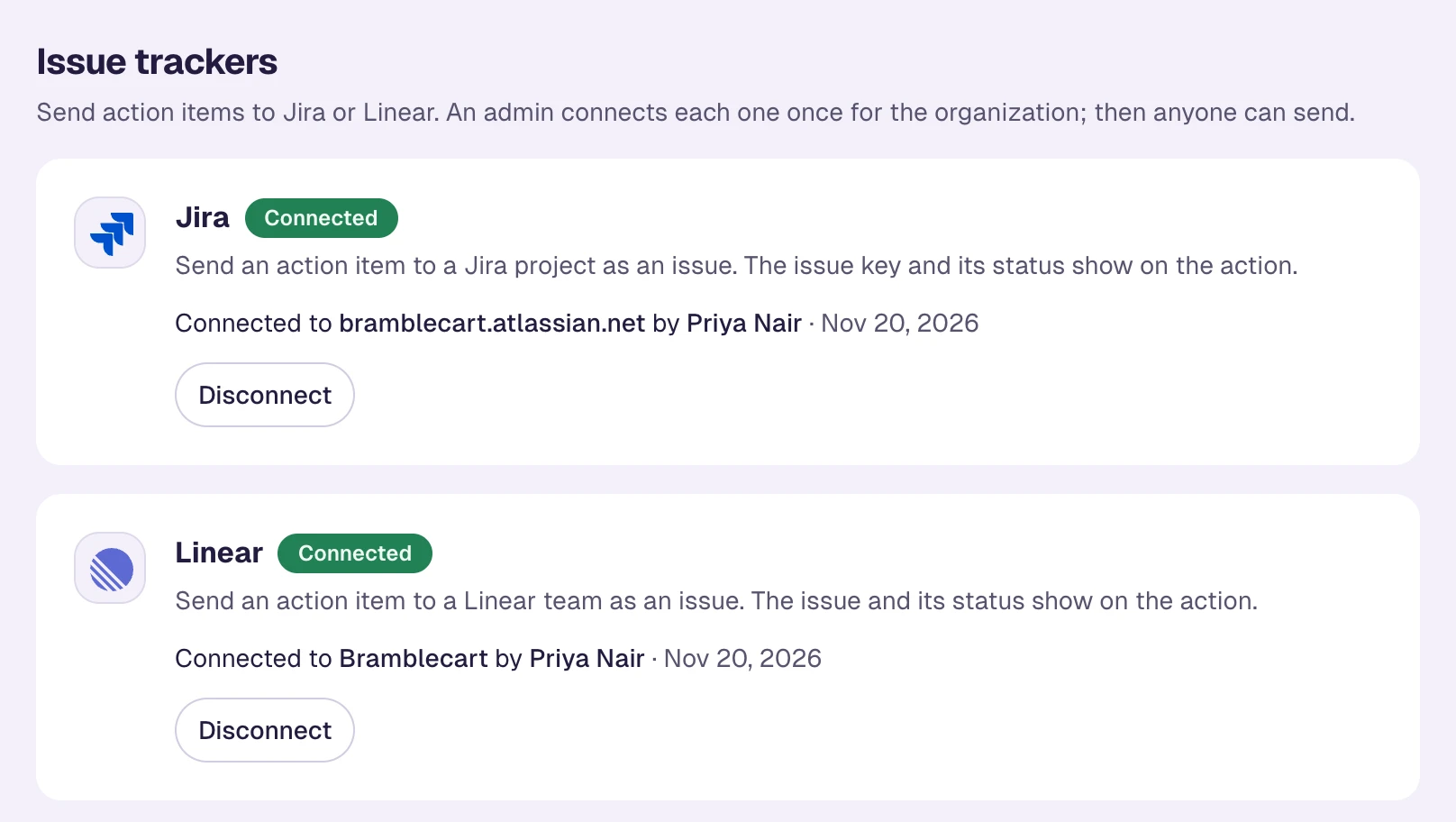
Open Integrations and press Connect Linear
Integrations is in the dashboard sidebar. Linear is listed under Issue trackers.
- 3
Approve the access on Linear’s screen
Linear shows what Retro Rabbit is asking for: read access and permission to create issues. You need to be allowed to install apps in the Linear workspace. Approve it and you land back on the Integrations page.
- 4
Send your first action item
On a retro board or in My actions, open an action item’s menu and choose Send to Linear. From now on, any member of the organization can do the same.
What shows back in Retro Rabbit
- An issue chip
- The issue ID and its current status, for example ENG-87 · In Progress, with a dot for to do, in progress, done or canceled.
- Wherever the action is
- On the retro board, in My actions, and in the check-in at the start of the next retro. Everyone on the board sees the chip as soon as the issue is created.
- A link to the issue
- Click the chip, or choose Open in Linear from the action’s menu, to go straight to the issue.
- A current status
- Retro Rabbit re-reads the status from Linear when someone opens the board or the action list, at most once every 10 minutes for each issue.
What lands in Linear
- Title
- The action item’s text (up to 255 characters; a longer one is repeated in full in the description).
- Description
- The note or group the action came from, quoted, unless you untick it. Then a line naming the retro with a link back to it.
- Due date
- A specific due date is set as the Linear due date. “By the next retro” is noted in the description.
- Assignee
- Retro Rabbit suggests the action item’s owner by matching their email in Linear. You can pick someone else or leave it unassigned.
- Created by
- The Retro Rabbit app, on behalf of the teammate who sent it. Linear shows it as that person “via Retro Rabbit”.
- Link
- A link attached to the issue that goes back to the retro in Retro Rabbit.
Limits, stated plainly
It’s one-way. Retro Rabbit creates the issue and reads its status. Edits made in Linear don’t come back, and editing the action item later doesn’t change the issue.
Statuses aren’t instant. They refresh when someone opens the board or the action list, at most once every 10 minutes per issue.
Nothing is sent automatically. A person sends each action item, and each action item becomes one issue, once.
One Linear workspace per organization. Any team in that workspace can be chosen each time you send.
No data comes in from Linear. Retro Rabbit doesn’t import cycles, projects or issues.
Guests can’t send. People who joined a retro with just their name see issue chips but need an account to send an action item.
Frequently asked questions
Does Retro Rabbit work with Linear?
Yes. An organization admin connects Linear once, and then any member can send a retrospective action item to a Linear team as an issue. The issue and its status show on the action item in Retro Rabbit.
Is the Linear integration free?
Yes. Linear is included on every plan, including the free plan for one team. See pricing.
Who can connect Linear, and who can send action items?
Only an organization admin can connect or disconnect Linear, and they need to be allowed to install apps in the Linear workspace. Once it’s connected, any member can send action items. People who joined a retro as a guest, with just their name, can’t send.
Is it a two-way sync?
No. Retro Rabbit creates the Linear issue and shows its ID and status on the action item. The status is re-read when someone opens the board, at most once every 10 minutes per issue. Other changes made in Linear don’t come back, and completing the action item in Retro Rabbit doesn’t close the issue.
What does Retro Rabbit send to Linear?
The action item’s text, its due date, the assignee you choose, a link back to the retro and, if you leave the box ticked, the text of the note or group it came from. Names of note authors are never sent. The Send dialog shows a preview of the exact issue first.
What access does Retro Rabbit ask for?
It connects through Linear’s own OAuth screen and asks for read access and permission to create issues. The access tokens are stored encrypted (AES-256-GCM).
How do we disconnect Linear?
An admin presses Disconnect on the Integrations page, which also revokes Retro Rabbit’s access in Linear. Issues already sent stay in Linear and their links stay on the action items, but their statuses stop refreshing.
More integrations
All integrations- JiraSend a retro action item to a Jira project as an issue. Its key and status show back on the action.How it works
- SlackAdd a retro note without leaving Slack with /retro, and get reminders to add notes where your team already talks.How it works
- MCP serverLet an AI tool list your retros, read notes, and add notes and action items as you, over the Model Context Protocol.How it works
Run the retro. Send the actions to Linear.
Start with one team for free, connect Linear from the Integrations page, and your next action items land where the work is tracked.
Free for one team · No credit card