

On this page (9 sections)
- Three ways to run a Confluence retro
- How to run a retrospective on a Confluence whiteboard
- How to run a retrospective on a Confluence page
- Keep action items alive in Confluence
- Confluence retrospective plugins
- When Confluence is enough, and when a dedicated tool is worth it
- How a retro works in Retro Rabbit
- Try it before you decide
- Related
You can run a retrospective in Confluence three ways: on a page built from a retro template, on a whiteboard built from a retro template, or by generating either one from a Jira sprint. It works, and if your company already pays for Confluence it costs nothing extra. What Confluence doesn't do is bring last retro's action items back to the team, so that's the part you have to build yourself.
Below: which route to pick, the steps for each, how to keep actions alive, which plugins exist, and the signs that a dedicated tool is worth paying for.
Three ways to run a Confluence retro
Atlassian doesn't sell a separate retro product. Its guides describe three routes, all of which end in a page or a whiteboard.
Best for a written record
A page template
Headed sections the team fills in, with suggested timings written into the page. Good for slow, written retros. The timer is a suggestion, not a feature.
Best for a live meeting
A whiteboard template
Sticky notes, a shared timer, voting sessions and private mode. Stickies can be turned into Jira issues.
Best if you live in Jira
From a Jira sprint
Create a retrospective for this sprint generates a page or whiteboard linked to the sprint. The Jira project needs a linked Confluence space.
Which Confluence retro template to use
| Confluence retro template | Where | What the team fills in | Use it when |
|---|---|---|---|
| Retrospective | Page | Background, then start doing, stop doing, keep doing, then what's next | You want a tidy written record |
| 4Ls | Page | Loved, longed for, loathed, learned | You're closing a longer stretch of work |
| Simple retrospective | Whiteboard | What was good, what was bad or needs improvement, ideas, actions | It's your first retro on a whiteboard |
| 4 Ls | Whiteboard | The same four, between a milestone column and an actions column | You want the 4Ls live, with votes |
| Sailboat | Whiteboard | A goal ahead of the boat, rocks for risks, wind for what helps | The team needs to talk about goals and risks |
If you don't know which to pick, start with Simple retrospective. It has an actions column built in, which the page template leaves until the end.
How to run a retrospective on a Confluence whiteboard
This is the route we'd take for a live meeting, because it has the most retro features. Allow about an hour for a two-week sprint.
A Confluence whiteboard retro, step by step
-
1
Create the board
From the Jira sprint if you have one, otherwise from a whiteboard template. Do it before the meeting, so nobody watches you set up.
-
2
Say what it's for
State the goal and that all views are welcome. Open with last retro's actions, which need their own home (more on that below).
-
3
Turn on private mode
Select the private mode icon in the right-hand toolbar, toggle Keep authors anonymous and choose Start for everyone.
-
4
Write against the timer
Everyone adds sticky notes while the shared timer runs. Then end private mode and read the board.
-
5
Group related notes
Drag them together. On plans that include Rovo, you can ask it to group sticky notes you've selected.
-
6
Run a voting session
Start one from the voting icon: name it, set votes per person, and switch on anonymous voting if you want it. A session can't be restarted, so agree the vote count first.
-
7
Discuss the top items and turn them into actions
Take the top-voted groups one at a time. Convert the actions you agree on into Jira issues, or copy them onto the retro page so the Task Report can find them.
Check your plan too. Atlassian's limits are 3 active whiteboards per user on Free and 10 on Standard, with unlimited on Premium and Enterprise. Boards over the limit become read-only, and one board per sprint gets you there quickly.
How to run a retrospective on a Confluence page
A page is plainer, and that's sometimes what you want: people can write over a few days, and the result reads like a document. Atlassian's Retrospective template suggests this timing.
The Confluence page template, as Atlassian times it
-
Before the meeting
Fill in the background
The facilitator adds context so the session can start straight away.
-
5 minutes
Set the tone
Explain the goal and how the session works.
-
10 minutes each
Start, stop, keep doing
Everyone writes in the section. The facilitator groups similar points and holds back their own views.
-
5 minutes
What's next
Agree next steps at the end.
That's about 40 minutes. Atlassian documents voting sessions and private mode for whiteboards, and we found no equivalent for pages. So if you need people to vote or post without their names, use a whiteboard or a plugin. For more on the written approach, see how to run an async retrospective.
Keep action items alive in Confluence
This is the step most guides skip, and it matters most. Vendor data disagrees on the numbers, but agrees on the pattern: most actions are still open when the next retro starts. We went through the data in retrospective action items that actually get done.
Confluence lets you link a retro to a sprint, and it lets you turn a sticky note into a Jira issue. Neither puts the open actions in front of the team at the next retro. Here's a setup that does, using features Atlassian already provides.
A carry-over routine you can build in Confluence
-
1
Give each team one parent page
"Team retrospectives". Every retro page sits under it.
-
2
Put the same label on every retro page
Something like
retro. Without a shared label, the report in step 4 has nothing to filter on. -
3
Write actions as Confluence tasks
Assign each one to a person and add a check date. If you ran the retro on a whiteboard, copy the actions onto the page.
-
4
Add a Task Report macro to the parent page
The Task Report macro can filter by label and show incomplete tasks. It only goes on a page for now, not a live doc.
-
5
Open every retro on that page
Five minutes, before anyone writes a new note: done, still going, or dropped. Tick off or delete what's finished.
It works, with two weak points. Someone has to remember the label every time, and the report only helps if the facilitator opens it. If your actions are Jira issues instead, do the same thing with a Jira label and a saved filter.
Confluence retrospective plugins
Searching the Atlassian Marketplace for "retrospective" returned 22 matches on November 2, 2026, but most are general boards and diagram tools. These are the ones relevant to a retro.
| App | By | What it adds | When we checked |
|---|---|---|---|
| Agile Retrospectives for Confluence | Catapult Labs | A retro board on a page: anonymous or named input, grouping, vote limits, and action items as Confluence tasks or Jira issues (Jira needs a separate connector) | 293 installs, 4.1/5 from 14 ratings |
| Lessons Learned for Confluence | Toine.com | Lessons on a retrospective page, tagged and owned, with a register across the site | No reviews yet |
| Miro Embed for Confluence | Miro | Puts a Miro board in a page, which means your team also needs Miro | 19.3k installs, 3.6/5 from 77 ratings |
Atlassian's own advice on evaluating apps is worth following: read the partner's privacy policy and the Privacy & Security tab, look for the Cloud Fortified badge, and check that compatibility is kept up to date.
Two practical points. Your retro notes then sit under the partner's privacy policy, not only Atlassian's, and those notes tend to be candid. And updates can need an admin: the Agile Retrospectives listing says its October 2026 release has to be approved by a Confluence admin before it applies.
When Confluence is enough, and when a dedicated tool is worth it
A retro tool costs money and adds a login, so it should have to earn its place.
Stay in Confluence, or switch?
Confluence is enough when
- Your retros already work. People turn up, say what they think, and actions get done.
- Your actions have to be Jira issues on the sprint board.
- You run one team's retro, live, and someone doesn't mind setting it up each time.
- Your company already pays for Confluence, and adding a vendor takes months.
A dedicated tool is worth it when
- The same issue has been a top topic for three retros running.
- Actions get written and forgotten, because the routine depends on one person remembering.
- Notes only appear during the meeting, so the first week of the sprint is gone by retro day.
- You'd be buying Confluence seats just to run retros.
One more number for that last point. When we priced it on October 23, 2026, Confluence Standard was $7.15 per user per month billed monthly at 24 users, or $171.60 a month. Retro Rabbit for three teams of eight is $90 on Starter or $120 on Pro AI, because it's priced per team. If you already have Confluence for everything else, that comparison doesn't apply: your retro is effectively free, and the question is whether it's working. The full math is in Retro Rabbit vs Confluence and Jira.
How a retro works in Retro Rabbit
Retro Rabbit is built around the loop that a wiki page leaves to you.
- Notes during the sprint. The board is open from day one. People add a note when something happens, on the board or from Quick Notes on the dashboard, so retro day starts with the whole sprint in front of you.
- A guided meeting. When you meet, start the retro and the board moves everyone through Look back, Write, Group, Vote, Discuss and Wrap up, with a shared timer.
- CarrotIQ does the admin. It suggests groups for related notes (you keep the ones that fit), summarizes each column and the whole retro, and drafts an action from your notes, weighted by votes. It's on Pro AI and included in the trial.
- Actions come back. Each action gets an owner and is due by the next retro by default, and the owner gets an email reminder. The next retro opens with a check-in on each one: Done, Keep or Drop.
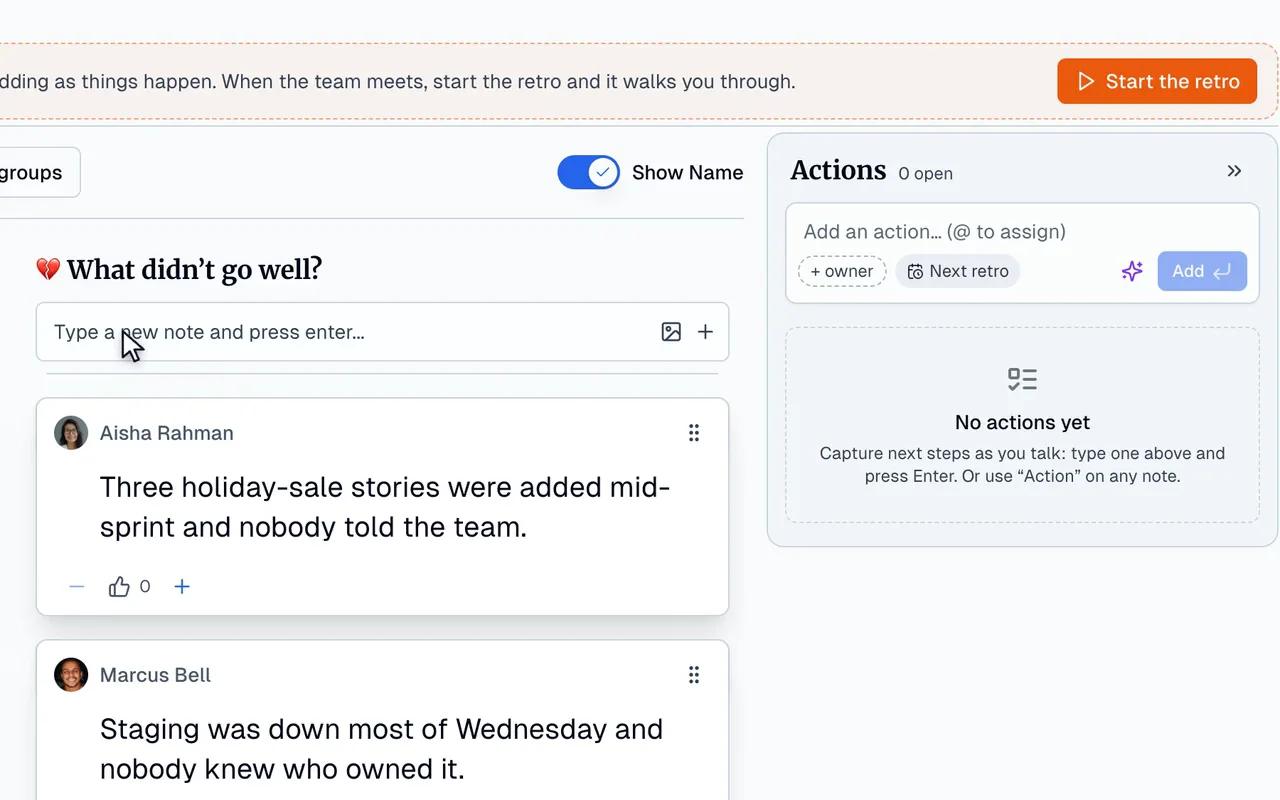
What it doesn't do: Retro Rabbit doesn't connect to Jira or Confluence today. If your actions must be Jira issues, that's a good reason to stay in Confluence. You can export a retro's notes as CSV or XLSX and the board as a PDF, and paste the outcome into a Confluence page if that's where your team keeps records.
If your team likes a Confluence format, the same ones are ready to use: Start Stop Continue, 4Ls and Sailboat.
Try it before you decide
Take the 2-minute practice retro, with no signup, to see the whole loop on a sample team. If you want to try it on a real sprint, the trial is 14 days with no card and CarrotIQ included: start on day one of a sprint so you collect notes as things happen. See pricing.
Related
Frequently asked questions
Does Confluence have a retrospective template?
Yes, several. The page templates include Retrospective (start, stop and keep doing) and 4Ls. The whiteboard templates include Simple retrospective, 4 Ls and Sailboat. Atlassian lists them in its whiteboard retro guide.
How do you create a retrospective from a Jira sprint?
After the sprint, use the 'Create a retrospective for this sprint' option. It generates a Confluence page or whiteboard linked to that sprint. Atlassian names one prerequisite: the Jira project has to be linked to a Confluence space.
Can people post anonymously in a Confluence retro?
On a whiteboard, yes. Private mode has a 'Keep authors anonymous' setting, and voting sessions have an anonymous option. Community users report that avatars of people on the board stay visible, so on a small team it's a partial shield. We found no equivalent for pages in Atlassian's docs.
Is there a Confluence retrospective plugin?
Yes. The closest match on the Atlassian Marketplace is Agile Retrospectives for Confluence by Catapult Labs, a paid app with anonymous input, grouping, vote limits and action items. When we checked on November 2, 2026 it had 293 installs and a 4.1/5 rating from 14 reviews.
Do Confluence action items carry into the next retro?
Not on their own. We found nothing in Atlassian's documentation that brings open actions into the next retro automatically. You can build a version of it with a parent page, a shared label and the Task Report macro, as long as someone opens that page at the start of each retro.
When is a dedicated retro tool worth it?
When actions keep stalling, the same issues keep coming back, notes only appear during the meeting, or you'd be buying Confluence seats just to run retros. If your retros already work and your actions need to be Jira issues, stay in Confluence.
Does Retro Rabbit integrate with Confluence or Jira?
Not today. Retro Rabbit keeps action items on its own boards and carries them into the next retro. You can export a retro's notes as CSV or XLSX and the board as a PDF.
Run retros that actually lead to change
Your team adds notes during the sprint, CarrotIQ groups and summarizes them and suggests action items, and unfinished items carry into the next retro.
14-day free trial · No credit card