
On this page (8 sections)
Most retrospective action items don't fail in the meeting. They fail afterwards, on a board nobody opens again or a page nobody rereads, while the real work happens in Jira or Linear. Putting retro actions where the team already plans its sprint is the simplest fix we know for follow-through.
It only works with a few rules, though. Dump every note into the backlog and the real actions drown. Skip the review at the next retro and nobody notices they stalled. Below: which actions deserve a ticket, how to set up Jira and Linear so retro work stays visible, the five-minute review that closes the loop, and how to send actions straight from a retro in Retro Rabbit.
Which retro action items belong in Jira or Linear
Two kinds of action come out of a retro, and only one of them belongs in a tracker.
| Kind of action | Example | Where it lives |
|---|---|---|
| A piece of work | "Write a one-page staging runbook" | A ticket, planned into the sprint |
| An experiment with an end date | "Try a no-meeting Wednesday for two sprints" | A ticket, so the check date stays visible |
| Something outside the team's control | "Get more staging capacity from the platform team" | A ticket for the escalation itself, owned by one person |
| A team agreement | "Review pull requests within one working day" | Your working agreements, read out at the start of each retro |
The test is simple: if you could close it, it's a ticket. An agreement never closes. It's a habit, and a ticket for one sits in progress forever, quietly teaching the team that retro tickets don't move.
Keep the number small. One to three actions per retro is plenty, for the reasons we go through in retrospective action items that actually get done. Three tickets that move beat ten that don't.
Six rules for retro tickets
These apply in either tool, and they're the difference between a retro label that means something and one that collects dust.
One label
Use retro everywhere, in every team. One label means one filter finds every open action.
One owner
A named person, never "the team". They don't do all the work; they make sure it happens.
A date
A real due date, or "by the next retro" in the description. An action with no date is a wish.
A link back
Link the retro and quote the notes that led to the action, so the why survives. Leave out who wrote them.
Sized to fit
It should fit inside one sprint. If it can't, the ticket is the first slice, not the whole project.
Planned, not parked
Add it to the next sprint or cycle at planning, counted against capacity like any other work.
The last rule matters most. The Scrum Guide says the most impactful improvements may even be added to the Sprint Backlog for the next Sprint. Improvement work kept in a separate pile waits for a quiet week that never comes.
How to track retro action items in Jira
A quick note on names: Atlassian's documentation now calls issues work items and projects spaces. The steps below work the same either way, and we'll say issue and project because that's still what most teams say.
Set it up once
One-time Jira setup for retro actions
-
1
Agree on the label
Everyone uses
retro. Write it into your team's working agreements so new joiners pick it up. -
2
Save the filter
In Jira's search, switch to JQL, paste
labels = retro AND statusCategory != Done ORDER BY created ASC, and save it as a filter called Open retro actions. Share it with the team. -
3
Add a board quick filter
In company-managed projects, add a quick filter with the query
labels = retro, so retro tickets are one click away in standup.
After each retro
Create one issue per action. Task works for most of them. Add the retro label, set the assignee to the owner, and fill in the due date. In the description, write what done looks like, quote the notes that led to it without names, and link the retro. Then add it to the next sprint at planning.
JQL you'll actually use
labels = retro AND statusCategory != Done ORDER BY created ASC
labels = retro AND statusCategory != Done AND created <= -28d
labels = retro AND statusCategory = Done AND updated >= -14d| Query | What it answers |
|---|---|
| The first | Every open retro action, oldest first. This is your saved filter and the start of the next retro. |
| The second | Open actions older than four weeks: roughly two retros on a two-week sprint. These need re-scoping or dropping. |
| The third | Done retro actions updated in the last two weeks: a rough list for the "did it help?" question. |
We use statusCategory rather than status names on purpose. Jira puts every status into one of three categories, To Do, In Progress or Done, and Atlassian's JQL reference treats a work item as resolved when its status category is Done. So the filter keeps working when your team renames a status or adds a new one.
How to track retro action items in Linear
Set it up once
One-time Linear setup for retro actions
-
1
Create the label
Add a
retrolabel. If several teams run retros, make it a workspace label rather than a team label, so one view can cover every team. Linear covers both in its issue properties docs. -
2
Save a custom view
Create a custom view filtered to the retro label, with completed and canceled issues hidden. Save it, share it with the team and favorite it.
After each retro
Create the issue in the team that will do the work. Assign the owner, set a due date, add the retro label, and put it in the current or next cycle. Write what done looks like and link the retro in the description, the same as in Jira.
Close the loop at the next retro
A label and a filter only help if someone opens them. Do it first, before anyone writes a new note.
The five-minute review
-
1
Open the filter or the view
Share your screen with Open retro actions in Jira, or the retro view in Linear.
-
2
One sentence per owner
Each owner says done, in progress, blocked or drop, and why in a sentence.
-
3
Close what's done
Mark it complete and ask briefly whether it helped. If it didn't, that's a topic for this retro.
-
4
Apply the two-retro rule
Anything with no progress across two retros gets re-scoped to something that fits this sprint, or dropped out loud.
-
5
Then start the retro
New actions come at the end, capped at one to three.
Five minutes covers three items. If it takes longer, you have too many open actions, and that's a finding in itself.
Mistakes that quietly kill retro tickets
- Tickets for everything. Ticketing every note buries the two that matter. Only actions the team agreed on become issues.
- "The team" as the owner. An unassigned ticket belongs to nobody. If nobody will own it, it isn't an action yet.
- Copying who said what. Quote the note, never the author. Names in a ticket that the whole company can search make the next retro quieter. Our blameless retrospective guide covers why.
- Losing the why. "Fix staging" means nothing in three weeks. A link back to the retro and a quoted note keep the context.
- Two copies that drift. Once an action is a ticket, the tracker is the source of truth for its progress. Don't keep updating a second copy by hand.
Sending action items from Retro Rabbit to Jira or Linear
Everything above works with copy and paste. We built Retro Rabbit's Jira and Linear integrations so the copying disappears, and so the retro still shows what happened to each action.
An organization admin connects Jira Cloud or Linear once, from Integrations in the dashboard. After that, anyone on the team opens an action item's menu, chooses Send to Jira or Send to Linear, picks where it goes, and checks a preview of the exact issue before creating it.
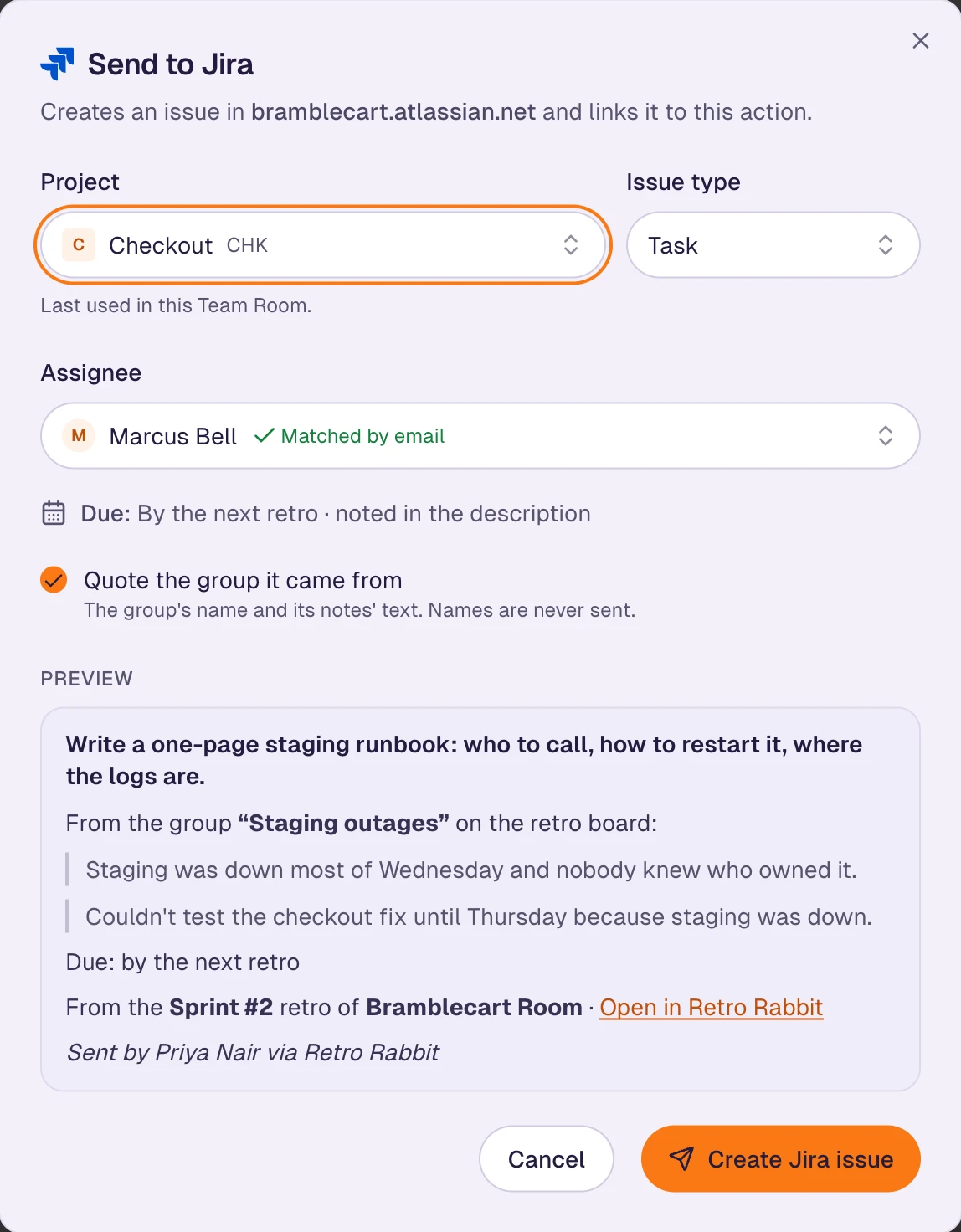
- What goes into the issue: the action's text as the summary, the note or group it came from quoted (untick the box to leave it out), the due date, a link back to the retro, and who sent it. Names of note authors are never sent.
- Who it's assigned to: Retro Rabbit suggests the action's owner by matching their email in Jira or Linear. You can pick someone else or leave it unassigned.
- What comes back: a chip with the issue key and status, such as CHK-89 · To Do, on the board, in My actions, and in the check-in at the start of the next retro. The status is re-read when someone opens the board or the action list, at most once every 10 minutes per issue.
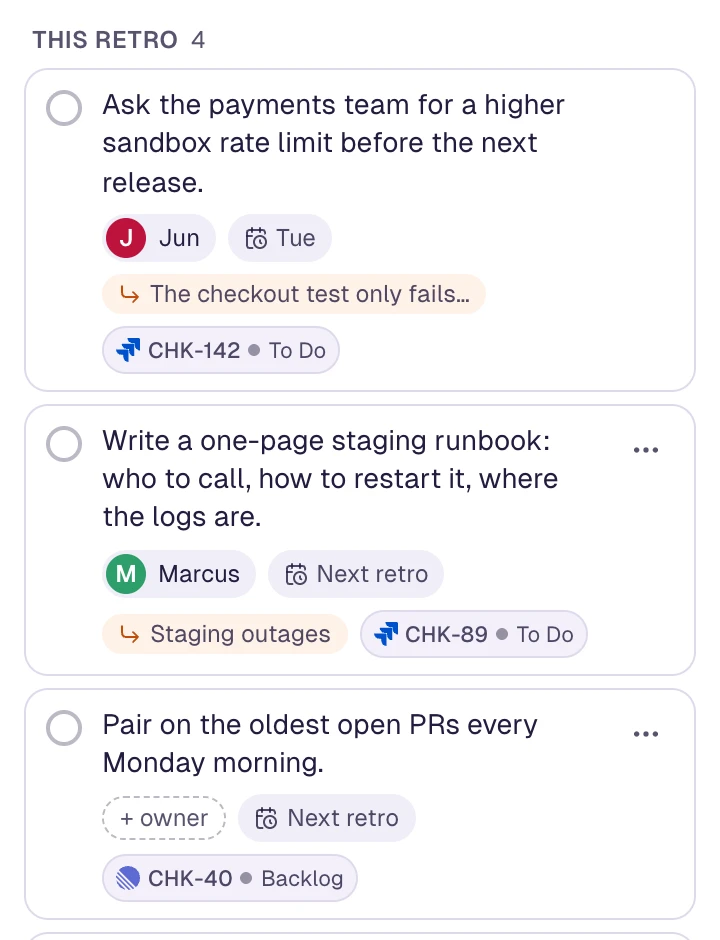
That covers the review at the next retro without opening a second tool: each carried-over action already shows its status.
It has limits, and we'd rather you know them up front. It's Jira Cloud only, not Data Center or Server. It's one-way: edits made in Jira or Linear don't come back. A person sends each action, so nothing is created automatically. An organization sends to one Jira site or one Linear workspace. And guests who joined a retro with just their name can see the chips but need an account to send.
Both integrations are included on every plan, including the free plan for one team. The Jira page and the Linear page have the setup steps and the full list of what's sent.
Related
Frequently asked questions
Should retrospective action items go in the sprint backlog?
The ones that produce a piece of work, yes. The Scrum Guide (2020) says the most impactful improvements may even be added to the Sprint Backlog for the next Sprint. Team agreements, such as reviewing pull requests within a day, aren't tickets: keep them visible at the start of each retro instead.
How do I find open retro action items in Jira?
Give each one the label retro and save this JQL as a filter: labels = retro AND statusCategory != Done ORDER BY created ASC. Status categories group every status into To Do, In Progress and Done, so the filter keeps working if your workflow has custom statuses.
How do I track retro action items in Linear?
Give them a retro label (a workspace label if several teams use it), assign an owner and a due date, and add them to the current or next cycle. Then save a custom view that shows the retro label and hides completed and canceled issues.
Do Linear cycles carry unfinished retro actions forward?
Open issues in a cycle generally roll over to the next one. Linear's docs say issues moved to the backlog, triage, canceled or completed during cooldown aren't carried into the next cycle, so a retro action parked in the backlog drops out of the cycle.
Who should own a retro action item?
One named person, not the team. They don't have to do all the work, but they make sure it happens and give its status at the next retro.
Can Retro Rabbit send retro action items to Jira or Linear?
Yes. An organization admin connects Jira Cloud or Linear once, and then any member can send an action item to it as an issue from the retro. The issue key and status show on the action. It's on every plan, including the free plan for one team.
Is it a two-way sync?
No. Retro Rabbit creates the issue and re-reads its status when someone opens the board or the action list, at most once every 10 minutes per issue. Other edits made in Jira or Linear don't come back.
Run retros that actually lead to change
Your team adds notes during the sprint, CarrotIQ suggests groups and names them, and unfinished items carry into the next retro. Pro adds CarrotIQ summaries and suggested action items.
Free for one team · No credit card